
With everything around us getting ‘connected’ and internet of things (IoT) becoming as common place as things are around us, it is quite logical that big tech companies are making innovations and investments in providing IoT solutions and platforms to build them. Microsoft, with its Azure cloud, provides many SaaS/ PaaS solutions which can seamlessly combine in a number architectures to develop highly scalable IoT solutions.
Now, whether backed by an IoT infrastructure or not, any device, machine or process which can generate data, can take the advantage of having the generated data analysed to gain insights into its functioning, predict performance or improve performance. With the possibility of a treasure trove that the data can be, it was natural for complex shop floor machines like CNC lathes to develop the ability to generate data. This lead to the development of a standard protocol, MTConnect, that all such machines can implement to transmit data. With the data generation ability and transmission protocol in place, the real value of the huge amounts data getting generated can be unlocked using Azure based IoT and analytics solutions.
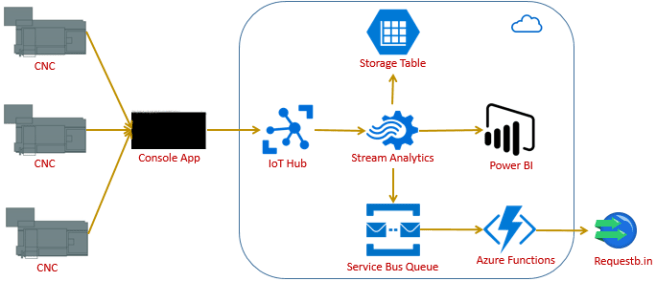
In this post we will discuss and implement an IoT architecture that will collect data, from a MTConnect data stream, using Azure IoT hub, analyse the data stream using Stream Analytics and see how this data can be used in different ways simultaneously.
What is MTConnect?
MTConnect is a protocol designed for the exchange of data between shop floor equipment and software applications used for monitoring and data analysis. MTConnect is referred to as a read-only standard, meaning that it only defines the extraction (reading) of data from control devices. – Wikipedia
MTConnect was created by the MTConnect Institute, a nonprofit company founded to create universally compatible connectivity standards to improve the monitoring capability of machines throughout the manufacturing industry. MTConnect is an open and royalty-free protocol for communication of data between shop floor equipment and software applications. – www.shopfloorautomations.com
Basically, MTConnect is an open protocol that defines the standards for data communication of shop floor machines like CNC lathe and it enables this using XML as data format and data access over HTTP using a RESTful XML service.
So how does a CNC emits data in XML format with pre-defined schema?

As depicted in the above diagram, CNC generates data, which is processed by an optional adapter, which is then processed by an agent which exposes it in XML over a RESTful service. Here, an adapter
- is a software that enables a machine to speak MTConnect, i.e. converts the data generated by a machine to an agent readable format.
- is optional as many machines have these inbuilt and the data they emit is MTConnect compliant.
An agent,
- is a driver program that gets the data from an adapter, formats it, and exposes it over HTTP as XML for consumption.
To have look at the XML schema and the various elements it gives the value for please check agent.mtconnect.org.
For more information on MTConnect, adapters, agents, etc. please refer mtconnect.org, Wikipedia, www.shopfloorautomations.com among others.
Console App – Data Collector – MTConnectToIoTHubAgent
Now we have briefly discussed about MTConnect and how a shop floor machine’s agent emits XML data over a RESTful service. But, how do we get this data? Well any application that can consume XML data over HTTP can use the service exposed by an agent to get data. In our case we will use a console app. We can have a single application that collects data from multiple machines. It is easy to guess that the CNC machines and their agents will most likely be behind a firewall with no access to the agent’s service from the internet. This means that
- the data collector application should run inside the firewall and push data to a remote or cloud based database or service.
- we can use Hybrid Connections to access an agent’s service from Azure Webjobs.
Now, in our case we do not have access to any actual CNC machine, but we can use the sample data stream exposed by mtconnect.org at agent.mtconnect.org. Also, as this sample stream is over the internet, we can have our data collector app deployed anywhere like an Azure Webjob or an Azure Functions app. But to keep the things simple, we will have a console app, MTConnectToIoTHubAgent.
You can download the code from The application uses most of the core of MTConnectSharp available on the MTConnect Institute’s Github. There are some changes that i have made to the original code but those are not important for us here. Now, this solution, MTConnectToIoTHubAgent, has the console app project MTConnectAgent, which collects the data and sends it to the Azure IoT Hub MTCIoT.
To start, the first we need to do is create an IoT hub(we will get to this) and add its connection string to the key IoTHubConnectionString in the app.config file of project MTConnectAgent.
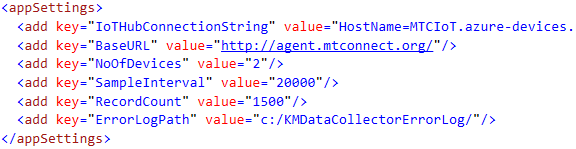
As mentioned above, we will use the sample MTConnect agent feed at agent.mtconnect.org to get data but use it to simulate multiple machines. Set the config value for NoOfDevices to mention how many devices you want to simulate and as many devices are simulated in the Init method of the main Program class.

You can leave rest of the appSettings as is. DataCollector registers our simulated machines/ devices with our IoT hub and initialises an instance of DeviceClient which is used to push data to IoT hub. We are using the Microsoft.Azure.Devices and Microsoft.Azure.Devices.Client Nuget packages. To know more about how to use .Net to talk to IoT hub, please refer this documentation.
The DataCollector class instantiates an object of MTConnectClient from the MTConnectAgent project which polls the machine agent URL agent.mtconnect.org, parses the XML data and returns the data to DataCollector. We are formatting the data to CSV format (why not JSON? – had to choose one, selected CSV) and uploading all the data from a single poll in one message.


Azure Resources
Apart from our data collector app, most of the other components in our architecture are resources deployed in Azure. Below are the components that we need to create/ deploy:
- Azure IoT Hub – MTCIoT
- Azure Storage (Table) – mtctablestorage
- Service Bus Queue – MTCBlogQueue with 1 Queue – mtcblogqueue
- Azure Function App – mtcblogfunction
- Stream Analytics Job – MTCStreamJob
We can:
- Go to Azure portal and create these components manually.
- Create them, using the ARM template i have created, using the below button:

- Create them, using the ARM template i have created, using the PowerShell script or deploy button from:
Azure IoT Hub – MTCIoT
Once we have our IoT hub deployed, we need to copy-paste its connection string to the key IoTHubConnectionString in the app.config file of the project MTConnectAgent of our data collector app MTConnectToIoTHubAgent.
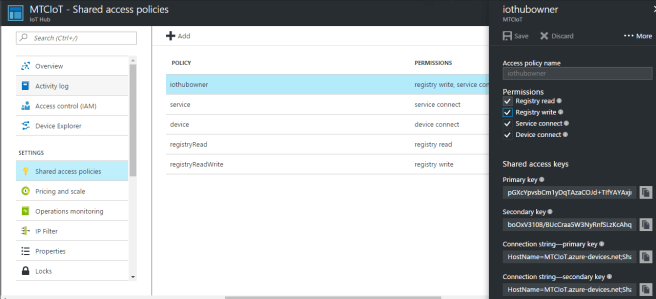
There are different policies with different access levels, i would suggest you take the connection string of the policy named iothubowner.
So, why IoT hub? In the MTConnect scenario we are discussing in this post, if we use 2 simulated machines we can get around 100 messages in a 5 minute run, with each of this message containing over 1000 data elements or events. It is for this type of high volume data ingestion, Microsoft has come up with IoT Hub. Fine, then why not Event Hubs? An IoT hub supports millions of devices which an event hub does not, nor does event hub supports as many communication protocol as IoT hub. In our application an event hub may also work, but in a typical IoT scenario implementing event hub may not be advisable. To learn more, please refer the documentation. In fact we can completely do away with an IoT or Event hub and directly save data to some data store, but performance and implementation complexities can be an issue. Choice completely depends on the application we are designing and also the budget.
Azure Storage (Table) – mtctablestorage
One of the data sinks our Stream Analytics job will output the data to is an Azure table. mtctablestorage is our Azure Storage account. We need not create any table manually as it will be created by the Stream Analytics job for us.
Stream analytics can store data in many types of data stores like DocumentDB, Azure SQL, Azure Data Lake. We have selected Table storage as our data, even though high in volume, is having simple structure with around 8 fields. One more advantage of storing data in Azure Tables is that, it can be accessed from any application like a website or can be easily imported into Azure Data Lake or Azure Machine Learning for any processing or analytics.
Power BI
Power BI is a Microsoft BI offering which is part of the Microsoft Office 365 and not Azure. If you do not have an Office 365 account try to create a free one at powerbi.microsoft.com.
To try out our application, you do not need any prior Power BI knowledge, but having some idea about Power BI datasets and data tables can help. A dataset and a data table will be created for us by the Stream Analytics job. We will come to it. We are using Power BI to demonstrate the capability of various Microsoft services to combine and provide real-time graphical representation of data being generated. In our scenario this can be very helpful in monitoring various machine parameters when it is in production.
Service Bus Queue – MTCBlogQueue
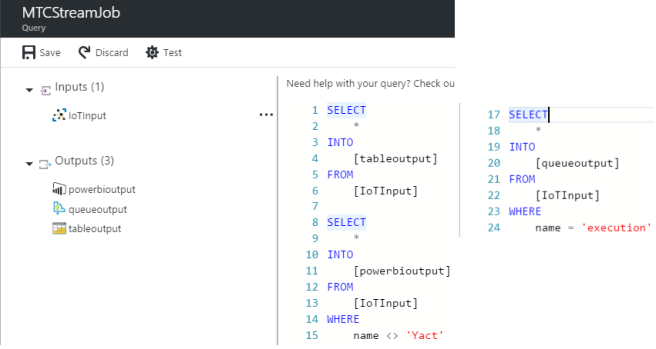
Our stream analytics job will push only the records which have field name with value execution to our queue (mtcblogqueue). We are handling only one condition and so using a queue. You may want to add another condition to try out Service Bus Topics.
We are using a service bus queue to understand and handle a scenario where a particular condition requires specific handling and how this can be done with live data streams form multiple devices. Also, this is a good demonstration of how queues can be used as a integration mechanism for IoT applications and the applications that process the ingested data.
Azure Function App – mtcblogfunction
We will have an Azure Function App to process the events that our stream analytics job will send to the service bus queue mtcblogqueue. Add a new function of type ServiceBusQueueTrigger-CSharp from the templates.
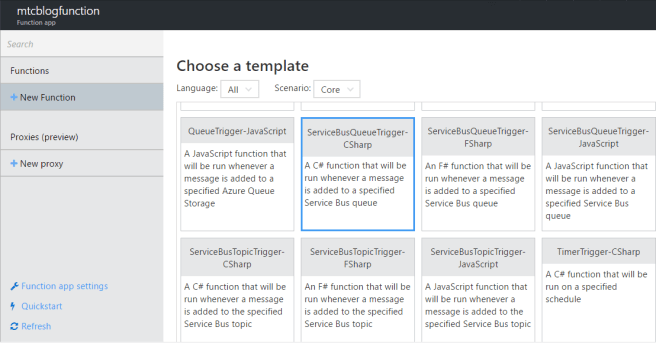
Set the properties as below:

Queue name has to be the queue that we created. The Service Bus connection drop down will be empty by default. Click new and add the service bus queue connection string to create a new connection and then select it. Then write the function code as below:

(Important: lines 15 & 16 should be one line or you will get compilation errors.)
We get queue items as input to the function as string. We convert the string to a JSON object as an input message to our queue mtcblogqueue is in JSON format (see the below section). We are using some message fields to create a message which says that the execution mode of a shop floor machine has changed and send this message to requestb.in. In our case the trigger for function execution is Service Bus queue and it is also the input. Our aim here is to see how a Service Bus queue can be processed using a Function App and so, we are not doing much with the message.
So are there any alternatives to Function App? Well there can be many. A direct replacement can be a Webjob. Or a website with Signal R or nServiceBus and Signal R can be used to process the queue and display messages on a live dashboard. Or some processing can be done and the message or some status forwarded to another queue. The possibilities are many and depend on the problem we are trying to solve.
Stream Analytics Job – MTCStreamJob
We now have our data collector console app, to collect data from agent.mtconnect.org and simulate multiple devices, in place; our IoT hub is in place for data ingestion. Also, our Azure table, Power BI credentials and Service Bus queue are in place to receive the ingested data. So, let us configure our Stream Analytics job, MTCStreamJob, that will connect all the above components together.
Once our job is created, we need to add an input which in our case is our IoT hub MTCIoT. Please follow the below images for setting the input values.
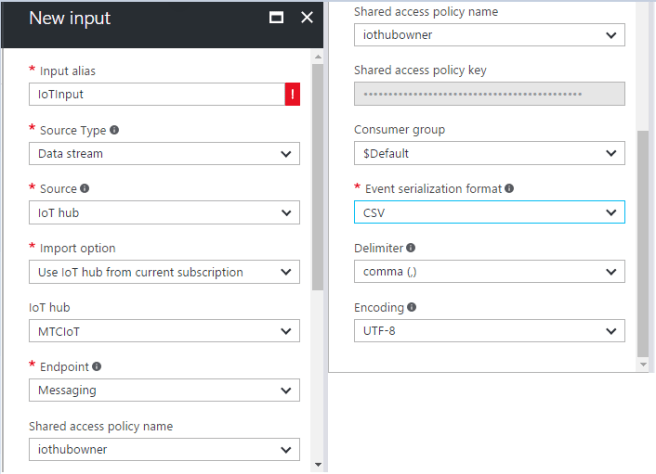
Now, lets add the outputs. Add an output of type Table Storage as below:

Please note: you can give any name for the output table, but make sure that you give the Partition key as sessionid and Row key as recordid as these need to be part of the data record that is ingested.
Next, add an input of type Power BI and set the values as below:
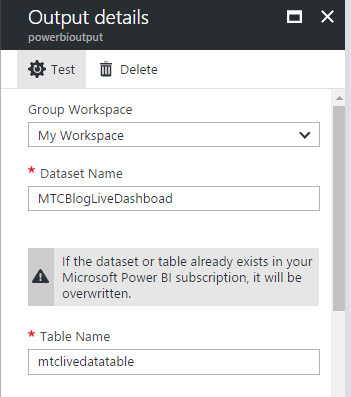
Please note, if you do not have a Power BI account, just skip this step. For more information on adding a Power BI type output, please refer the documentation.
Lastly, add an output for Service Bus queue as below:
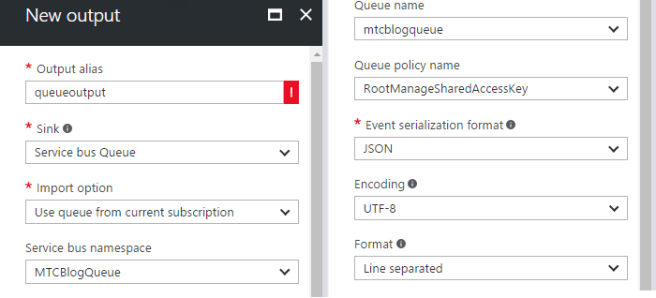
Here, we have set event serialization format as JSON as our Function app mtcblogfunction expects an input message in JSON format. So, even though our input event/ message format in IoT hub is CSV, stream analytics converts it to JSON.
Once all the outputs are created, add a query to process the message stream and send data to the outputs.
Execution
Once all the components are in place, we can start the execution.
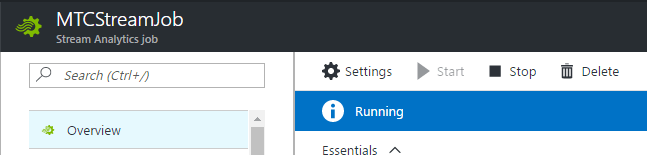
- Start the stream analytics job MTCStreamJob.
- Start the data collector console app MTConnectToIoTHubAgent.
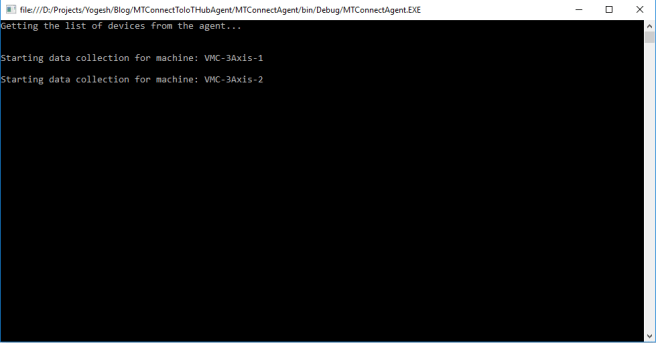
Here we are running our data collector with 2 instances of a shop floor machine.
Results
I run the data collector for almost 3 minutes and below are the results:
Azure Storage (Table) – mtctablestorage

The above pic is a screen grab of Microsoft Azure Storage Explorer. We can see that the table mtctablestorage, which we had mentioned in the tableoutput of our stream analytics job, has been created. I downloaded the table data and a total of 28058 records were downloaded. Imagine the amount of data processed by the IoT hub and the stream analytics job in just 3 minutes!
Power BI
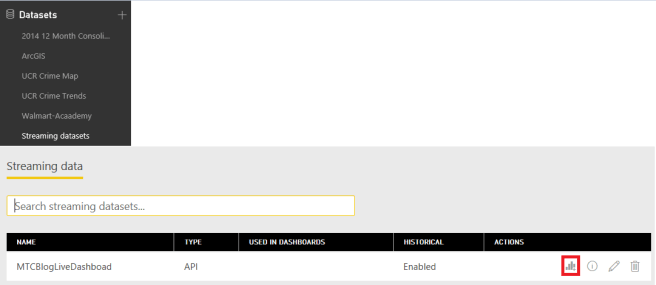
As shown in the image above, in the Streaming datasets option in the menu we can find our dataset MTCBlogLiveDashboard created. If we select the graph icon, we can create reports from the live streaming data. Below are 2 sample reports i quickly put together.
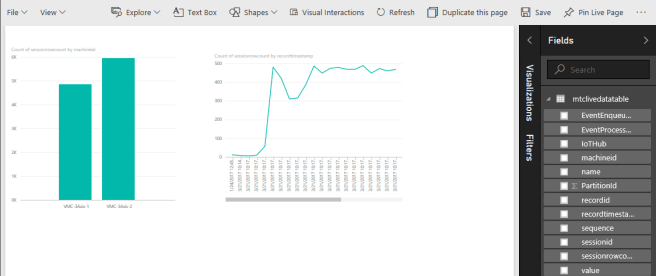
Similarly, we can create a dashboard with the live streaming data.
Azure Function – mtcblogfunction
Our third stream analytics output is the service bus queue mtcblogqueue, and the messages queued in it are processed by our function app. We can see if the function was triggered, and processed the queue messages, in its logs.

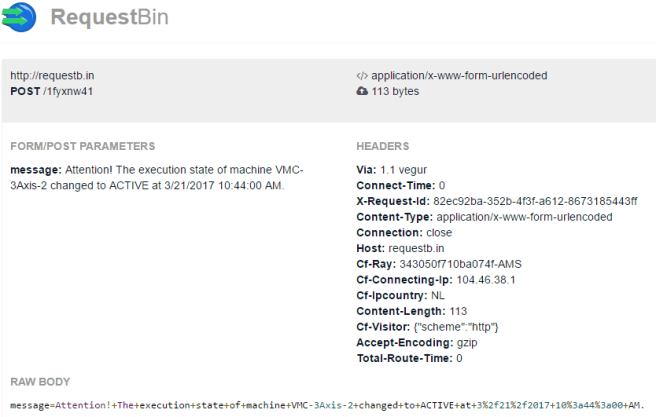
In our case, we are sending a message to requestb.in and for our run, we had 4 messages processed and the output in requestb.in looks as below:
Conclusion
We have implemented and executed an architectural scenario where we ingested data from MTConnect enabled shop floor machines into an IoT Hub, processed it and output it to an Azure Table, Power BI and Service Bus Queue. This is a real life scenario and a production level solution can be easily constructed based on our architecture and implementation.

 Code, Design, etc.